Reliable Mac sleep control
from any keyboard.
QuickSleep puts your Mac to sleep or starts your screen saver from any keyboard, with a shortcut designed to avoid common system conflicts.
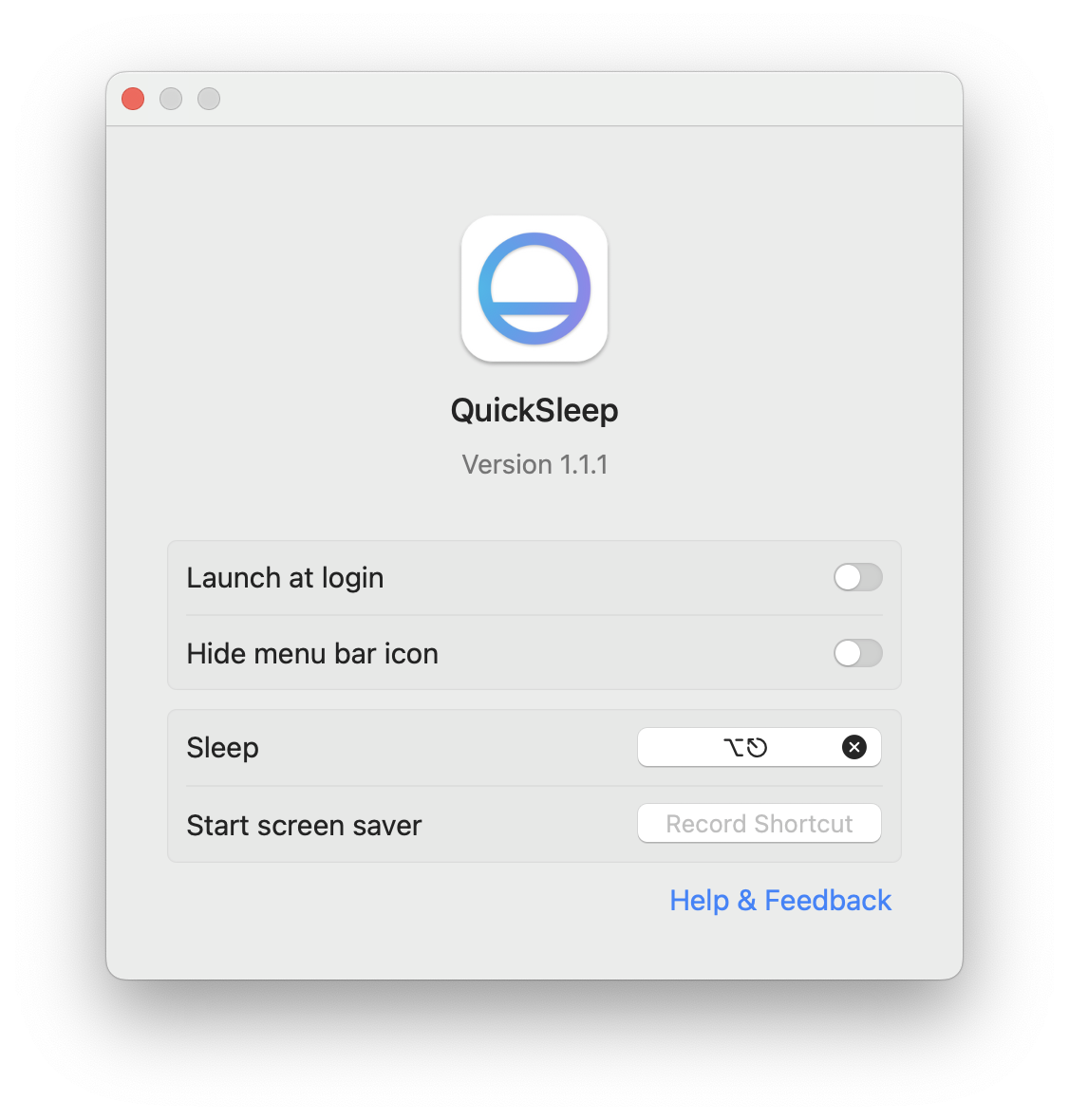
Choose a shortcut you can rely on
QuickSleep gives any keyboard a dedicated shortcut for sleep or the screen saver.
Designed to avoid conflicts
QuickSleep handles its shortcut directly instead of relying on a system shortcut that another app can override.
Works with Bluetooth keyboards
Use a custom sleep shortcut even when your keyboard has no Lock key.
Sleep or screen saver
Choose what happens when you press your shortcut.
Frequently asked questions
Doesn’t my Mac already have a sleep shortcut?
On a built-in keyboard without Touch ID, Option-Command-Power button puts the Mac to sleep. On a keyboard with Touch ID, pressing that button locks the screen instead. QuickSleep gives any keyboard a shortcut that puts the Mac to sleep.
Can I set a shortcut for the screen saver too?
Yes. Record one shortcut for sleep and another to start the screen saver in QuickSleep’s settings.
Why doesn’t my Mac lock when it goes to sleep?
Open System Settings > Lock Screen and set “Require password after screen saver begins or display is turned off” to Immediately.
Put your Mac to sleep from any keyboard.
Choose a shortcut for sleep or the screen saver.