
The best Safari tab switcher depends on what you remember about the page. Use a keyboard shortcut when you know its position, Tab Overview when you want to inspect or search all tabs, Tab Groups when you know its project, and recent-use switching when your thought is “the tab I just used.”
Safari tab-switching methods compared
| What you remember | Best method | Typical input | How it selects a tab |
|---|---|---|---|
| It is beside this tab | Next/previous | Keyboard | Position in the tab bar |
| Its numbered position | Number shortcut | Keyboard | First eight tabs or the rightmost tab |
| Its title or appearance | Tab Overview | Keyboard search, then pointer selection | All tabs in the active Tab Group |
| Which project it belongs to | Tab Groups | Sidebar | A manually organized set of related tabs |
| You used it a moment ago | Recent-tab switcher | Keyboard | Most-recently-used history in the active window |
No single method wins every time. The useful distinction is whether you remember a tab by position, appearance, group, or recency.
Safari keyboard shortcuts for switching tabs
Safari’s built-in keyboard shortcuts are quickest when you know where the tab is:
| Action | Shortcut |
|---|---|
| Go to the next tab | Control-Tab or Shift-Command-] |
| Go to the previous tab | Control-Shift-Tab or Shift-Command-[ |
| Select one of the first eight tabs | Command-1 through Command-8 |
| Select the last tab | Command-9 |
| Show Tab Overview | Shift-Command-\ |
| Reopen the last closed tab | Shift-Command-T |
These commands follow the arrangement of the tab bar. “Previous tab” means the tab to the left, not the tab that was previously active. Apple maintains the full list in its Safari keyboard shortcut guide.
If Command-1 through Command-9 do not select tabs, open Safari > Settings > Tabs and enable Use Command-1 through Command-9 to switch tabs.
Tab Overview still requires the pointer
Press Shift-Command-\ to show thumbnails for the tabs in the active Tab Group. You can then type to search for an open tab by its title.
However, Safari does not let you move keyboard focus to a result and open it. Even after finding the right tab with the keyboard, you must use the pointer to click its thumbnail. Tab Overview is therefore useful for inspecting or searching all tabs, but it is not a complete keyboard tab switcher.
Use Tab Groups for projects and contexts
Tab Groups reduce the number of tabs you need to search at once. They work well for durable contexts such as a work project, trip, class, or personal research topic.
They require organisation in advance and are less direct for moving repeatedly between two pages. Apple explains how to create and open them in its Safari Tab Groups guide.
Switch Safari tabs by recent use
Safari does not have a built-in most-recently-used tab shortcut. TabBack for Safari adds the recent-use order familiar from Command-Tab:
- Press once to return to the previously active tab.
- Keep pressing to move further back through recently used tabs.
- Use the reverse shortcut if you pass the tab you need.
- Recognize similar pages from visual previews and open one without leaving the keyboard.
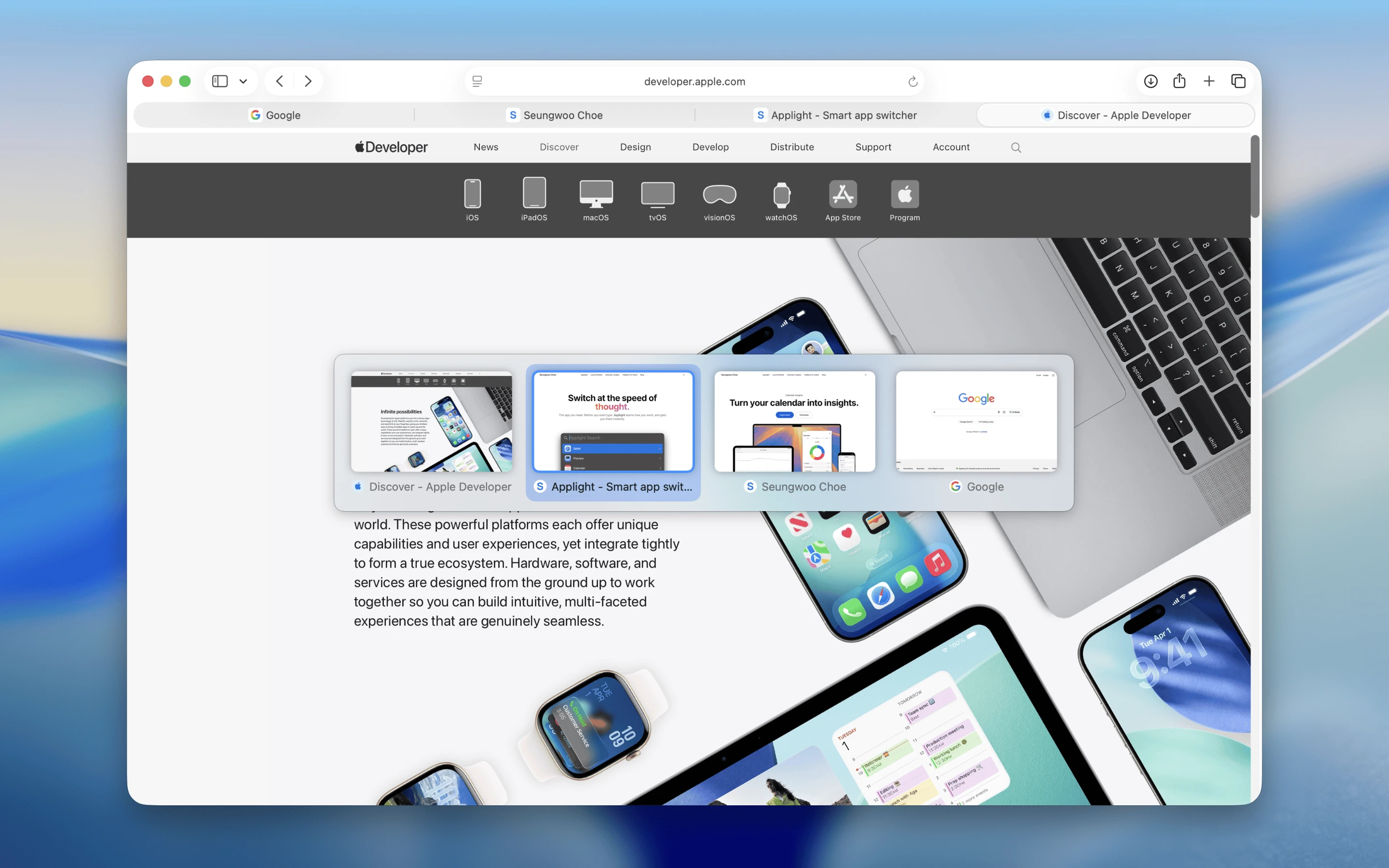
Recent Safari tabs in use order, with visual previews.
TabBack’s shortcut is customizable. You can assign Control-Tab if you want Safari to switch tabs by recent use instead of moving left to right, or preserve the default and choose another shortcut.
For setup instructions and answers about alternating between two tabs, read how to switch to the last active tab in Safari.
Which method should you choose?
- Two adjacent tabs: use Control-Tab or Control-Shift-Tab.
- A tab with a known position: use Command-1 through Command-9.
- A title you can search, with the pointer available: use Tab Overview.
- A visually distinctive recent page, without leaving the keyboard: use TabBack’s previews.
- A separate project or browsing context: use Tab Groups.
- The page you were just using: use a recent-tab switcher.
- A page you closed: use Shift-Command-T or History > Recently Closed.
These methods complement one another. Tab Groups can keep projects separate while recent-use switching handles rapid movement inside the active window.
TabBack limitations and privacy
TabBack works per window: each Safari window has its own recent-use history, and switching operates in the active window. Within that window, TabBack can switch only among tabs in the currently active Tab Group because Safari does not let an extension focus a tab in another group. TabBack does not run on iPhone or iPad.
Safari extension permission is required to track tab activation and create previews. Processing stays on your Mac; visited pages are not collected or transmitted. See the privacy policy and setup guide for details.
Frequently asked questions
What is an MRU tab switcher?
MRU means “most recently used.” Instead of following the tab bar from left to right, an MRU switcher starts with the tab you used most recently, then the one before that.
Can Safari make Control-Tab use recently used order?
Safari’s built-in Control-Tab command selects the next tab by position. A Safari extension such as TabBack can assign Control-Tab to recent-use switching instead.
What is the fastest way to switch between two Safari tabs?
If the tabs are adjacent, Safari’s next- and previous-tab shortcuts are direct. If they are far apart, a recent-tab shortcut lets you alternate between them without remembering their positions.
How is TabBack different from Tab Overview?
Both show visual previews. Tab Overview shows every tab in the active group and lets you search by title, but Safari requires a pointer click to open the result. TabBack orders its previews by recent use and lets you select and open a tab entirely from the keyboard. Use Tab Overview to inspect or search the whole group; use TabBack for keyboard-first switching among tabs you were recently using.