
Safari for Mac has no built-in shortcut that returns to the last active tab. Control-Shift-Tab selects the tab to the left, which may not be the tab you were using a moment ago.
To switch by recent-use order, like Command-Tab for Mac apps or Control-Tab in Firefox, you need a Safari extension such as TabBack for Safari.
What does “previous tab” mean in Safari?
Several different actions are commonly called “go to the previous tab.” Safari has a built-in shortcut for three of them:
| What you want | Safari shortcut |
|---|---|
| Select the tab to the left | Control-Shift-Tab or Shift-Command-[ |
| Select the rightmost tab | Command-9 |
| Reopen the tab you most recently closed | Shift-Command-T |
| Return to the open tab you were just using | No built-in Safari shortcut |
Apple lists the positional and closed-tab commands in its Safari keyboard shortcut guide. None of them navigates open tabs in most-recently-used order.
Switch between the last two active Safari tabs
TabBack keeps a separate recent-use history for each Safari window. In the active window, press its shortcut once to return to the previously active tab. Press it once again to switch back, making it quick to alternate between two pages that are far apart in the tab bar.
To set it up:
- Install and open TabBack on your Mac.
- In Safari, open Safari > Settings > Extensions and enable TabBack.
- Choose Always Allow on Every Website so the extension can track active tabs and create previews.
- Open TabBack Settings and choose your preferred keyboard shortcut.
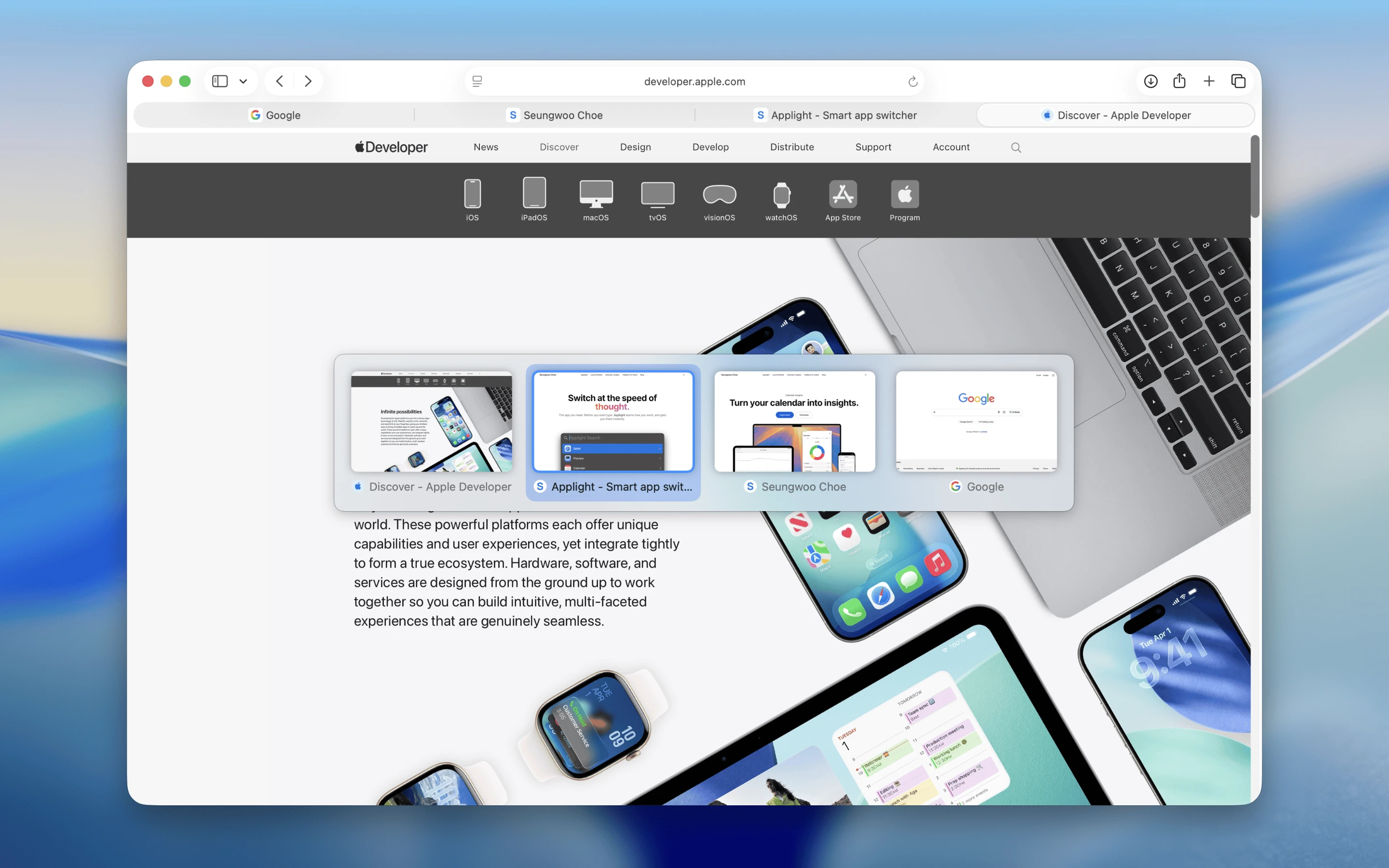
Recent Safari tabs in use order, with visual previews.
Go further back through recently used tabs
TabBack is not limited to the last two tabs. Hold your chosen modifier keys and press the remaining shortcut key repeatedly to move further back through your recent tabs. Release the modifiers when the tab you want is selected.
If you pass it, use the reverse shortcut to move in the other direction. You can also press Esc to cancel without changing tabs.
This is most useful when you remember when you used a page but not where it sits in the tab bar.
Make Control-Tab switch by recent use
Safari normally assigns Control-Tab to the next tab in tab-bar order. TabBack can use Control-Tab instead, giving Safari recent-tab switching that feels closer to Firefox.
You can also choose another shortcut if you want to keep Safari’s default next-tab command. TabBack’s shortcut is customizable rather than fixed.
When a built-in Safari shortcut is faster
Recent-use switching is not always the best tool:
- If the tab is directly beside the current one, use Control-Tab or Control-Shift-Tab.
- If you know its position, use Command-1 through Command-9.
- If you want to inspect every tab and do not mind using the pointer to open one, use Tab Overview with Shift-Command-\. You can search by title from the keyboard, but Safari requires a pointer click to open the result.
- If you closed the page, use Shift-Command-T or Safari’s History > Recently Closed menu.
For a fuller comparison, see Safari tab-switching methods and shortcuts.
Common questions
Can Safari switch to the previously active tab without an extension?
Not with a built-in keyboard shortcut. Safari can select the next, previous, numbered, last, or recently closed tab, but those commands do not follow the order in which open tabs were used.
Does TabBack work with multiple Safari windows, Tab Groups, and profiles?
Yes. TabBack maintains a separate recent-tab history for each Safari window and switches tabs in the active window. Within that window, it can switch only among tabs in the currently active Tab Group because Safari does not let an extension focus a tab in another group. For Safari profiles, enable TabBack separately in each profile where you want to use it.
Does it work on iPhone or iPad?
No. TabBack is a macOS app and Safari extension.
Why does TabBack need website permission?
Safari requires extension permission for TabBack to track active tabs and create visual previews. TabBack processes that information on your Mac and does not collect or transmit the pages you visit. Read the TabBack privacy policy for details.