In Apple Clock, labels and repeat days help you identify alarms and schedule them for your routine. For named groups with controls for several alarms together, create your alarms in MultiAlarm and assign them to a group such as Home or Work.
Start with labels and repeat days in Clock
If you only have a few alarms, you may not need a group. Open Clock → Alarms, tap an alarm, and give it a useful Label, such as “Work — leave home”. Use Repeat to choose its normal days, then save it. Repeat this for the other alarms in the routine.
Shared labels make alarms easier to recognise; they do not make a group switch. You still turn each alarm on or off beside its time. See Apple’s instructions for editing and switching alarms.
For one wake-up time on weekdays and another on weekends, a Sleep schedule in Health may be enough. Groups become useful when each routine contains several alarms that you want to manage together.
A series and a group do different jobs
In MultiAlarm, a series creates several alarms from one start time and a spacing pattern. A group organises one or more entries, which can be single alarms or whole series.
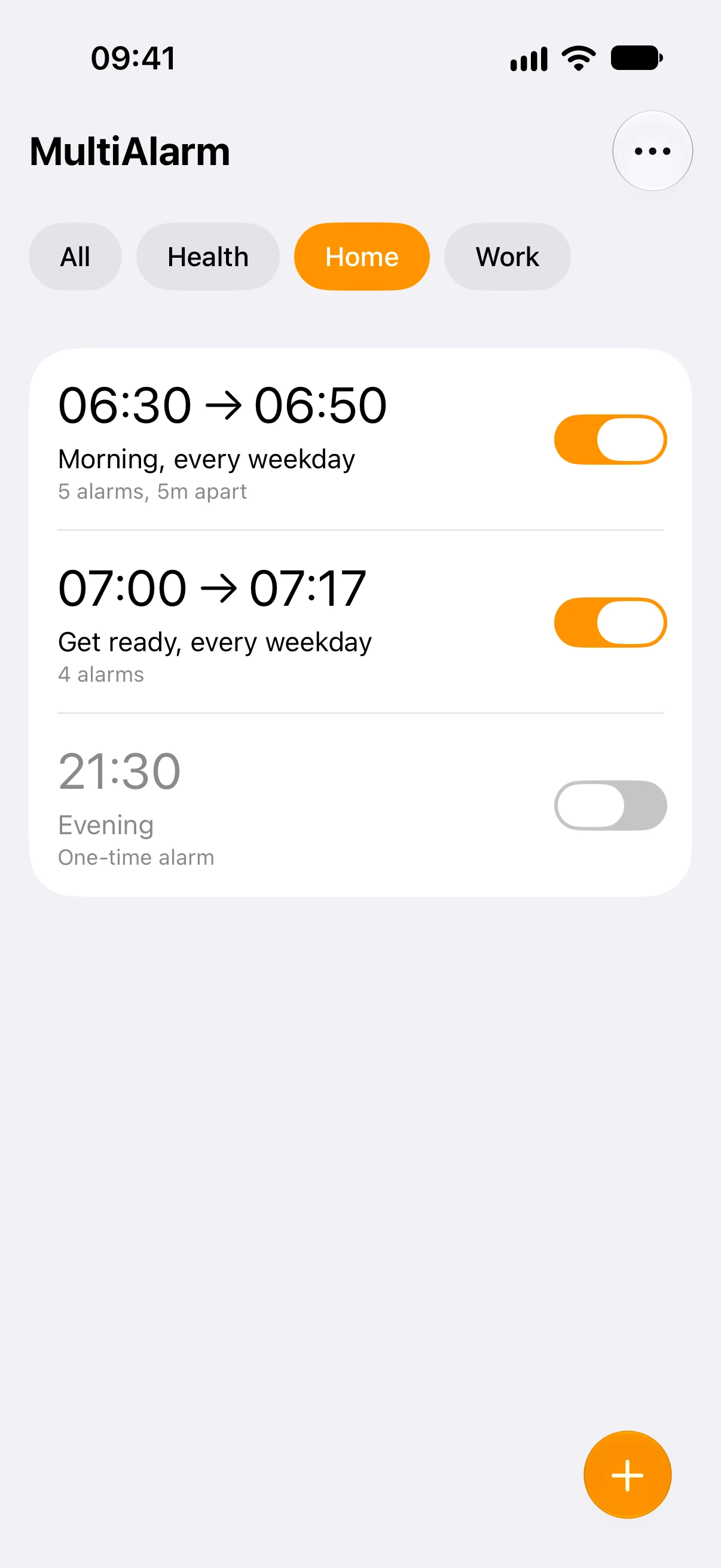
For example, a Home group could contain:
| Entry | Schedule | Purpose |
|---|---|---|
| Morning | 06:30–06:50, every five minutes | A five-alarm sequence |
| Get ready | 07:00, 07:10, 07:15, 07:17 | A sequence with different gaps |
| Evening | 21:30 | A single alarm |
The switch beside Morning controls its five alarms. The group controls can act on all three entries. Selecting Home only filters the list; it does not itself turn any alarm on or off.
Create a group in MultiAlarm
- Tap + to create an alarm, or tap an existing entry to edit it.
- Set its time and, if needed, choose a sequence.
- Open Group. Select an existing group, or type Home in the Group name field under New Group.
- Return to the alarm editor and save with the checkmark.
- Assign other alarms to the same group, then tap Home above the main list to see them together.
Use names that reflect when you need the alarms, such as Home, Work, or Weekend.
Turn a routine off and back on
Select the group first, then open the … menu. For a group named Home, choose Turn Off All Home Alarms. This disables its alarms without deleting their settings.
When you need the routine again, select Home and use Turn On All Home Alarms. You can also use the switch beside an individual entry.
With All selected, the menu acts across all groups. Check the selected filter and the menu label before using a bulk action.
Keep existing Clock alarms separate
MultiAlarm does not reorganise or switch alarms in Apple’s Clock app. Recreate the times you want in MultiAlarm, review them, and turn off any duplicate Clock alarms yourself.
Download MultiAlarm on the App Store if managing routines together would save you time.