You can set several alarms in the iPhone’s Clock app by adding each time separately. To create a whole sequence in one setup, MultiAlarm lets you choose the first time, the number of alarms, and their spacing.
Choose between a sequence and snooze
A sequence has specific alarm times: for example, 06:30, 06:35, and 06:40. Snooze pauses an alarm after it rings. Choose a sequence when you want planned times; choose snooze when you simply want the same alarm to ring again after a pause.
Current versions of Clock let you set Snooze Duration when Snooze is enabled. If that solves your problem, you do not need another app. Apple’s Clock guide explains the options.
Set several alarms in Apple Clock
For a short sequence you rarely change, Clock is enough:
- Open Clock → Alarms and tap +.
- Set the first time, such as 06:30. Choose the days under Repeat, and add a label if useful.
- Save the alarm, then add another at 06:35.
- Repeat for 06:40, 06:45, and 06:50. Check the repeat days on each alarm.
Turn off Snooze on each if you want only the five planned alarms. Otherwise, snoozed alarms can overlap with later alarms in your sequence.
Create the sequence in one setup with MultiAlarm
Use MultiAlarm when you want to edit or switch the sequence as a unit.
- Tap +, then choose Repeat at the top of the editor.
- Set the first alarm to 06:30.
- Set Number of alarms to 5 and Minutes between alarms to 5 minutes.
- Under Weekly, choose the days you need. This is separate from the Repeat option that sets the spacing within the series.
- Choose a sound, add a label, and save with the checkmark.
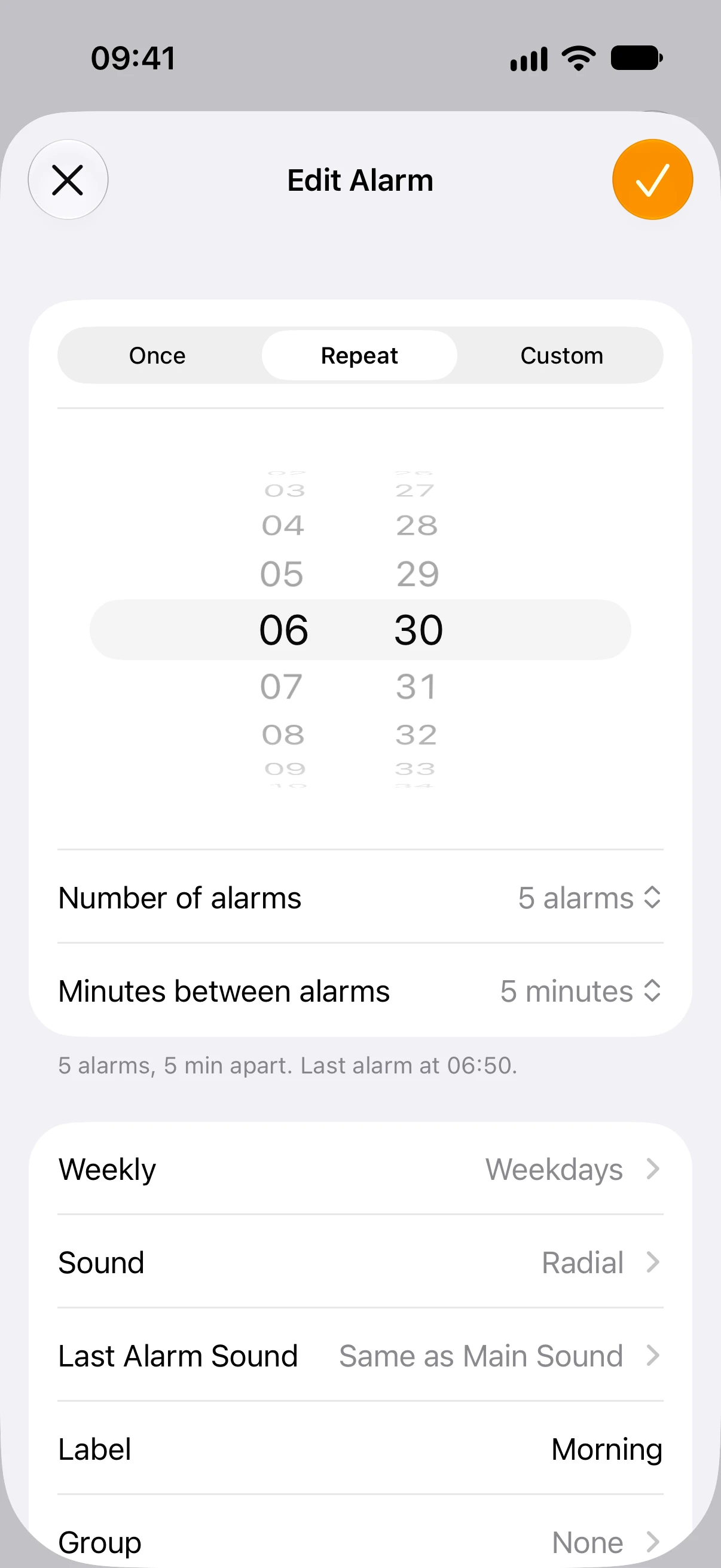
The example produces this schedule:
| Alarm | Time |
|---|---|
| 1 | 06:30 |
| 2 | 06:35 |
| 3 | 06:40 |
| 4 | 06:45 |
| 5 | 06:50 |
Five alarms have four gaps, so the last alarm is 20 minutes after the first. Check the last-alarm time beneath the controls before saving. To move the routine later, edit the first time; the spacing stays the same.
Use custom spacing for different steps
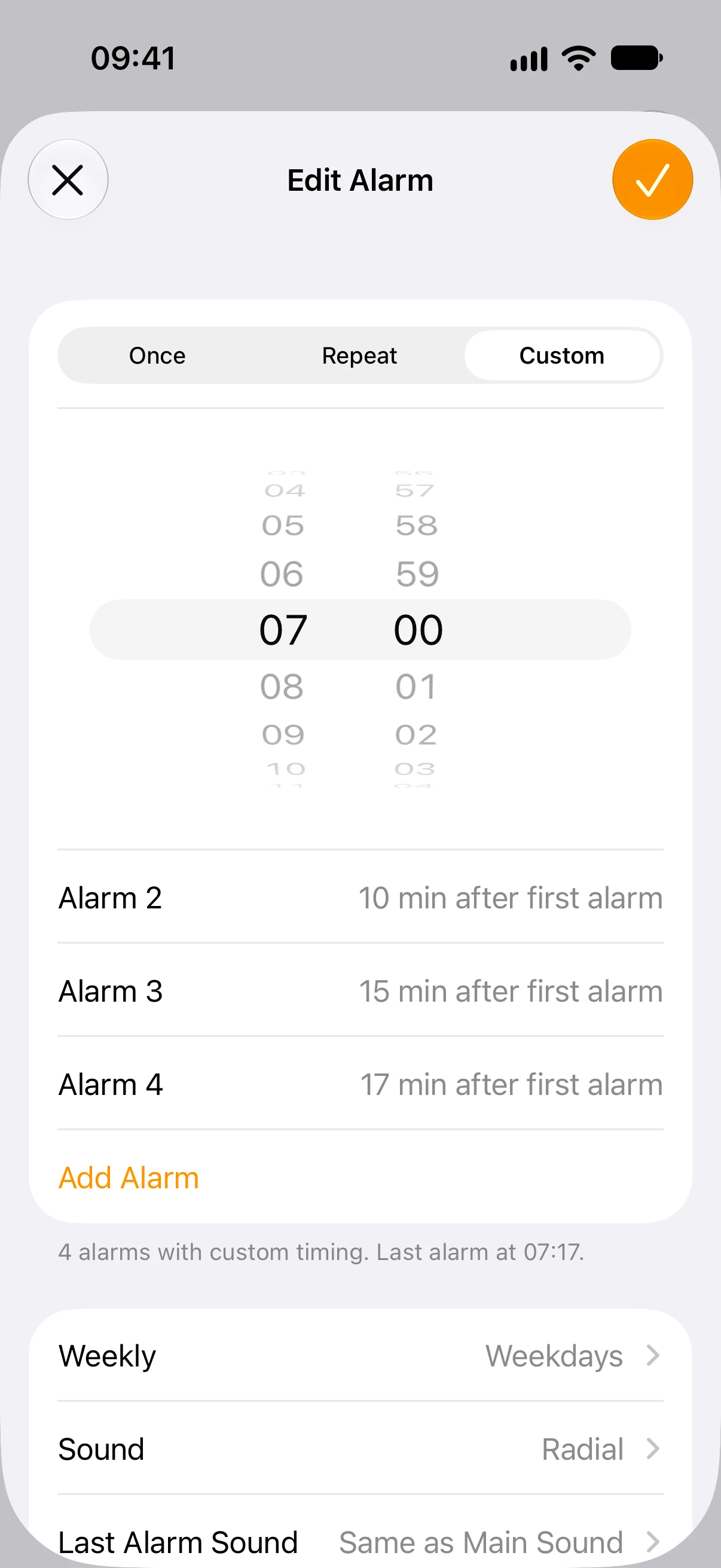
Suppose you want alarms at 07:00, 07:10, 07:15, and 07:17. In MultiAlarm, choose Custom, set the first time to 07:00, and use Add Alarm to enter offsets of 10, 15, and 17 minutes.
Each value means minutes after the first alarm, not after the previous one. The gaps in this example are 10, 5, and 2 minutes. Moving the first alarm to 08:00 moves the later alarms to 08:10, 08:15, and 08:17.
Check and control the result
On the main list, check the first and last times, the alarm count, and the repeat days. The switch beside the series turns the whole series on or off. Check any alarms you previously set in Clock as well, so both apps do not ring for the same routine.
If you have several routines, organise them into groups. For example, keep a morning sequence and a separate leaving-home sequence in one Home group.
Download MultiAlarm on the App Store to create and manage a sequence together.